When WordPress 7.0 launched the Icon block earlier this year, it was one of the most exciting moments I’d felt in a while. But it was also a bit of a letdown because there was no public API for registering custom icons. The list of available icons for the block felt limiting for most creative uses of it.
The good news: the public API is shipping with WordPress 7.1!
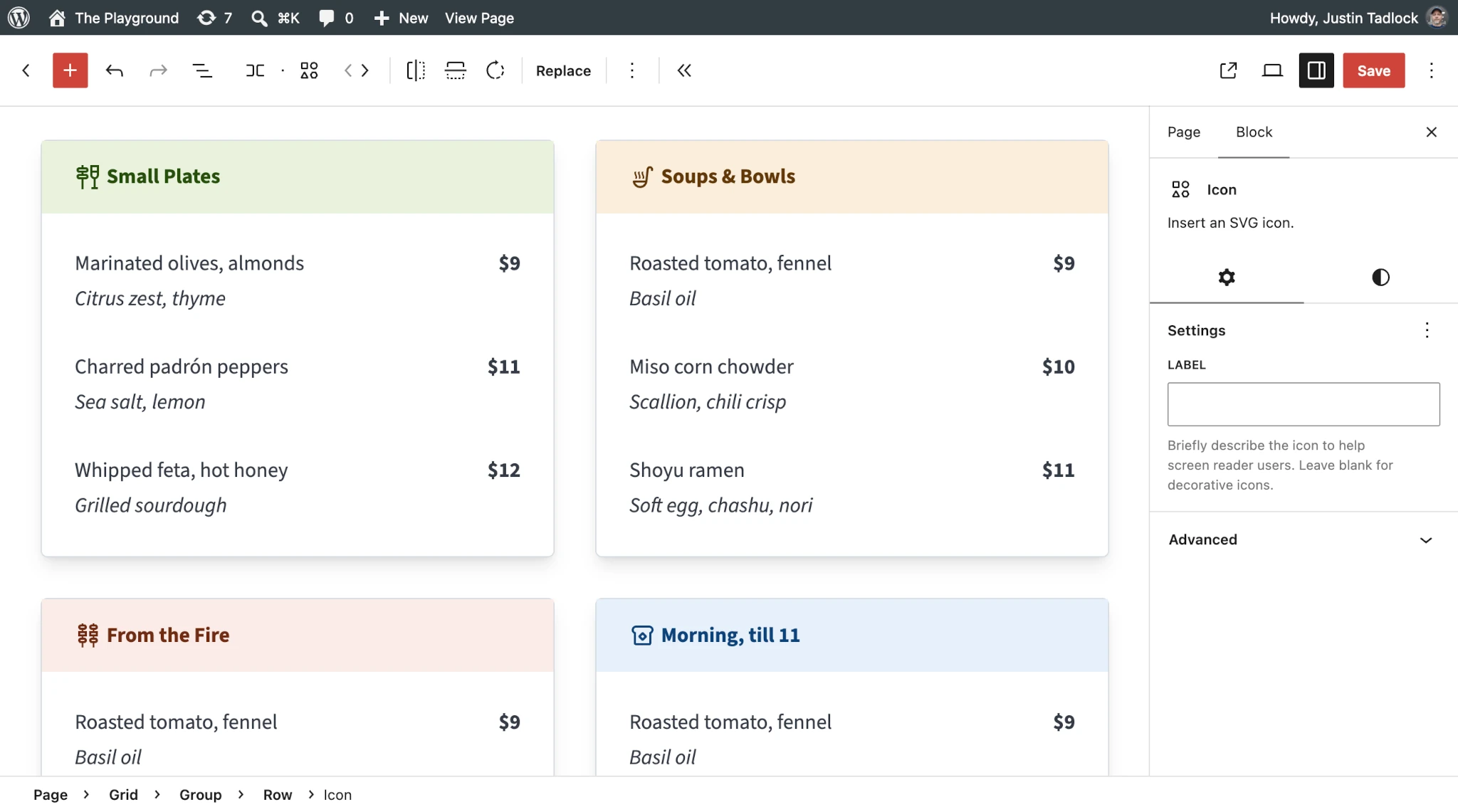
And it does nearly everything that I need for truly using it in projects, such as this restaurant menu idea I’ve been tinkering with:
In this tutorial, I’ll walk you through some of the basics. Then you’ll learn how to build a complete icon registration plugin from start to finish.
Table of Contents
How to register icons
This tutorial covers the introductory layer of using the API, the relevant parts for most use cases. For a complete overview, read the Registering and rendering SVG icons in WordPress 7.1 developer note.
A quick overview of the registration functions
When registering custom icons, you need to do two things:
- Register a custom icon collection, or know the slug of an existing collection that you want to register icons for.
- Register your icons for a specific collection.
Most plugins and themes will require custom collections, which can be registered via the wp_register_icon_collection() function:
wp_register_icon_collection( string $slug, array $args );The function has two parameters that you must pass your arguments to:
$slug: A unique key for your plugin for your collection. Ideally, this is prefixed with your plugin/theme name (e.g.,plugin-collection).$args: An array of arguments for the collection:label: A human-readable and internationalized label for the collection, which is used in the UI.description: An internationalized string describing the collection.
Once you have a collection, you’ll use wp_register_icon() to register individual icons:
wp_register_icon( string $icon_name, array $icon_properties );It also has two parameters:
$icon_name: A collection-namespaced identifier for an icon. It must start with a collection slug, followed by a/(e.g.,plugin-collection/icon-slug).$icon_properties: An array of arguments to define the icon:label: An internationalized, human-readable label for the icon.content: The SVG markup for the icon (optional).file_path: A file path to the SVG markup for the icon (optional).
Both content and file_path are optional parameters individually, but you must choose one or the other to actually register an icon.
An example collection and icon
Later in this tutorial, you’ll learn how to build a complete plugin with a restaurant icon collection. But let’s start with a short example of utilizing the functions you just learned about.
When registering collections and icons, you should do so on the init hook. The following code, either added to a plugin file or theme’s functions.php, will register a Cake icon under a Restaurant collection:
add_action('init', 'devblog_restaurant_icons_register');

function devblog_restaurant_icons_register(): void
{
	wp_register_icon_collection('devblog-restaurant', [
		'label'       => __('Restaurant', 'devblog-restaurant-icons'),
		'description' => __('Demo icons provided by the DevBlog Restaurant Icons plugin.', 'devblog-restaurant-icons')
	]);

	wp_register_icon('devblog-restaurant/cake', [
		'label'   => __('Cake', 'devblog-restaurant-icons'),
		'content' => '<svg xmlns="http://www.w3.org/2000/svg" height="24px" viewBox="0 -960 960 960" width="24px" fill="#1f1f1f"><path d="M160-80q-17 0-28.5-11.5T120-120v-200q0-33 23.5-56.5T200-400v-160q0-33 23.5-56.5T280-640h160v-58q-18-12-29-29t-11-41q0-15 6-29.5t18-26.5l56-56 56 56q12 12 18 26.5t6 29.5q0 24-11 41t-29 29v58h160q33 0 56.5 23.5T760-560v160q33 0 56.5 23.5T840-320v200q0 17-11.5 28.5T800-80H160Zm120-320h400v-160H280v160Zm-80 240h560v-160H200v160Zm80-240h400-400Zm-80 240h560-560Zm560-240H200h560Z"/></svg>'
	]);
}
The code uses the content property above instead of file_path. For one-off examples, that’s probably preferable because it shows the full code. You’ll use the file_path property in the complete plugin example below.
To test the registered collection and icon, insert the Icon block in the Post or Site Editor and click the Replace button in the block’s toolbar. You will then see the Icon Library with the new Restaurant tab (i.e., collection):

After selecting the Cake icon, it will appear in the Icon block, which you can customize with the existing design tools.
The generated block markup looks like this:
<!-- wp:icon {"icon":"devblog-restaurant/cake"} /-->As you can see, both the collection and icon slug are included: devblog-restaurant/cake. You can use this markup in templates or patterns, just like any other block.
As far as new development features go, this one is pretty straightforward. That’s all you really need to know for most uses of the Icon Registration API.
But let’s dive into actually building a full project on top of this new API.
Building an icon registration plugin
As shown earlier, I had an idea of using icons for a restaurant menu page. I knew that a few icons sprinkled throughout the design would give it a little more visual appeal to readers.
So I’ll walk you through how I built a plugin to add those icons. All the code is presented below in steps, but you can also study the complete code in its GitHub repository.
Plugin setup
As with any other plugin, you must create a new folder under wp-content/plugins and put a main plugin file inside it. You’ll also need a couple of sub-folders for this project. Go ahead and create a plugin directory that is structured like this:
devblog-restaurant-icons/public/icon/
src/plugin.php
Now add this code to plugin.php via your preferred code editor:
<?php

/**
 * Plugin Name:       DevBlog: Restaurant Icons
 * Plugin URI:        https://github.com/wptrainingteam/devblog-restaurant-icons
 * Description:       WordPress 7.1+ demo plugin for registering icon collections.
 * Version:           1.0.0
 * Requires at least: 7.1
 * Requires PHP:      8.1
 * Author:            Developer Blog
 * Author URI:        https://developer.wordpress.org/news
 * License:           GPL-3.0-or-later
 * License URI:       https://www.gnu.org/licenses/gpl-3.0.html
 * Text Domain:       devblog-restaurant-icons
 */

declare(strict_types=1);

namespace DevBlog\RestaurantIcons;

# Prevent direct access.
defined('ABSPATH') || exit;

# Define the plugin constants.
const PLUGIN_DIR = __DIR__;
Most of this is pretty boilerplate stuff for creating plugins. But take note of the PLUGIN_DIR constant; you’ll reference this later.
Keep this file open in your editor. You’ll also add more code to it later in this tutorial.
I’m building this as a plugin, but you can also register icons via a theme. The only difference will be where the icon SVG files are loaded from. You can skip the above code in a theme context.
Bundling icons in plugin
For this project, I used multiple food-related icons from Google’s Material Icons library. Feel free to pull them directly from there or get the list directly from this project’s GitHub repo folder.
Once you have the icons, put them into a public/icon folder in your plugin. Your folder should be structured like this:
icon/bakery.svgbento.svgbreakfast.svgbrunch.svgcake.svgdinner.svgkebab.svglunch.svgramen.svgrestaurant.svgrice-bowl.svgsoup-kitchen.svgtapas.svg
Defining the icon data structure
There are many ways of representing the icon values in PHP. You could do a plain array, constants, generate an icon manifest like WordPress itself (also an array), or just include a bunch of wp_register_icon() calls in your code.
I’m not a fan of those methods. PHP has had enumerations (enums) for five years (since 8.1). And, in this case, I prefer using a string-backed enum for compile-time safety and autocompletion. Plus, no magic strings!
In your plugin’s src folder, create a new file named Icon.php and add this code to it:
<?php

declare(strict_types=1);

namespace DevBlog\RestaurantIcons;

enum Icon: string
{
	case Bakery      = 'bakery';
	case Bento       = 'bento';
	case Breakfast   = 'breakfast';
	case Brunch      = 'brunch';
	case Cake        = 'cake';
	case Dinner      = 'dinner';
	case Kebab       = 'kebab';
	case Lunch       = 'lunch';
	case Ramen       = 'ramen';
	case Restaurant  = 'restaurant';
	case RiceBowl    = 'rice-bowl';
	case SoupKitchen = 'soup-kitchen';
	case Tapas       = 'tapas';

	// Additional code for the enum goes here...
}
As you can see, each enum case represents one of the icon filenames (without the .svg extension) that you added in the previous step.
There are also a couple of other pieces of data that you’ll need for your icons:
- The collection slug:
devblog-restaurant. - The absolute path to where the icons are stored in the plugin, which is the
PLUGIN_DIRconstant you added earlier + the relative path topublic/icon.
Add these as constants inside the enum definition:
public const COLLECTION = 'devblog-restaurant';

private const ICONS_PATH = PLUGIN_DIR . '/public/icon';
The enum also needs to carry some behavior in this case. As covered earlier, there are three pieces of information that you need to register an icon: a name, label, and SVG. So each one of these things needs an equivalent method in the Icon enum for returning the data.
First, add a new label() method to the enum:
public function label(): string
{
	return match ($this) {
		self::Bakery      => __('Bakery', 'devblog-restaurant-icons'),
		self::Bento       => __('Bento', 'devblog-restaurant-icons'),
		self::Breakfast   => __('Breakfast', 'devblog-restaurant-icons'),
		self::Brunch      => __('Brunch', 'devblog-restaurant-icons'),
		self::Cake        => __('Cake', 'devblog-restaurant-icons'),
		self::Dinner      => __('Dinner', 'devblog-restaurant-icons'),
		self::Kebab       => __('Kebab', 'devblog-restaurant-icons'),
		self::Lunch       => __('Lunch', 'devblog-restaurant-icons'),
		self::Ramen       => __('Ramen', 'devblog-restaurant-icons'),
		self::Restaurant  => __('Restaurant', 'devblog-restaurant-icons'),
		self::RiceBowl    => __('Rice Bowl', 'devblog-restaurant-icons'),
		self::SoupKitchen => __('Soup Kitchen', 'devblog-restaurant-icons'),
		self::Tapas       => __('Tapas', 'devblog-restaurant-icons')
	};
}
This uses match() to return the internationalized text label for the current enum case.
Next, add a handle() method to the enum:
public function handle(): string
{
	return self::COLLECTION . '/' . $this->value;
}
Because an icon name needs to be namespaced with the collection name, we can just prepend it here. So any time you need a reference to an icon’s full handle/name, you can call Icon::CaseName->handle().
And, finally, you need a way to reference the absolute file path to the SVG, so add a filePath() method to the enum:
public function filePath(): string
{
	return self::ICONS_PATH . '/' . $this->value . '.svg';
}
Note if building this in a theme, use get_theme_file_path("public/icon/{$this->value}.svg"). There’s no need for the ICONS_PATH constant at all.
Using a backed enum instead of an array gives Icon compile-time type safety and autocompletion. For example, Icon::Cake is a real, checkable type that PHP validates and IDEs can autocomplete, whereas an array key like $icons['cake'] is just a string a typo and can silently break with no error until runtime.
The enum also lets behavior live next to the data. Methods like label(), handle(), and filePath() are defined once per case via match. Adding a new icon means adding one case and one line per method, and PHP’s match will warn you (via static analysis or a runtime UnhandledMatchError) if a case is left unhandled.
The enum makes the full set of valid icons closed, discoverable, and self-documenting, rather than an open-ended set of “magic strings” scattered across arrays.
Registering the icons with WordPress
Now that you have a type-safe, IDE-friendly representation of your icons in code, all that’s left is letting WordPress know about it. You can do this with a small class with the singular responsibility of registering the icons.
Create a new file under src with the name of IconRegistrar.php. Then add the following code to it:
<?php

declare(strict_types=1);

namespace DevBlog\RestaurantIcons;

final class IconRegistrar
{
	public function boot(): void
	{
		add_action('init', $this->register(...));
	}

	private function register(): void
	{
		// Register the collection.
		wp_register_icon_collection(Icon::COLLECTION, [
			'label'       => __('Restaurant', 'devblog-restaurant-icons'),
			'description' => __('Demo icons provided by the DevBlog Restaurant Icons plugin.', 'devblog-restaurant-icons')
		]);

		// Register icons for the collection.
		foreach (Icon::cases() as $icon) {
			wp_register_icon($icon->handle(), [
				'label'     => $icon->label(),
				'file_path' => $icon->filePath()
			]);
		}
	}
}
This class has a boot() method that, when called, adds the register() action on the WordPress init hook. From there, it registers both the icon collection and the individual icons.
Because you used a string-backed enum, you get the built-in static cases() method for free, which returns an array of your icon cases. So the above code only needs to loop through each case and pass the result of each of the custom methods into wp_register_icon().
Also note that the code uses Icon::COLLECTION without needing to remember what that string was when registering the collection itself. No typos to worry about!
Load the plugin files and bootstrap
Last items: load the PHP files you just created and call the IconRegistrar::boot() method.
At the bottom of your plugin.php file, add this code:
# Load classes manually. In production, use an autoloader.
require_once PLUGIN_DIR . '/src/Icon.php';
require_once PLUGIN_DIR . '/src/IconRegistrar.php';

# Bootstrap services.
add_action('plugins_loaded', static function (): void {
	(new IconRegistrar())->boot();
});
Now if you look at the Icon Library Restaurant tab from earlier, you should see the full list of registered icons:

Outputting icons
As mentioned earlier in this article, you can reference registered icons via their names in the Icon block:
<!-- wp:icon {"icon":"devblog-restaurant/cake"} /-->That’s often a poor development experience with larger collections because you must remember the exact string name. And there’s no autocomplete if that string lives in a plain array somewhere else.
With the enum, it’s easy to fix that without worrying about the exact name. To ensure that you get the correct Cake icon, reference it like so:
<!-- wp:icon {"icon":"<?= Icon::Cake->handle() ?>"} /-->If you’re not in a block context (e.g., a classic theme or outputting as part of a plugin in some other way), you can use the wp_get_icon() function:
<?= wp_get_icon(Icon::Cake->handle(), [
	'size' => 32
]) ?>
The missing pieces: what you can’t yet do
The Icon Registration API is super powerful at this point, allowing you to register icons for most needs. But there are still some limitations that will ship with WordPress 7.1. These are features that are actively being worked on for version 7.2 and beyond.
Allowlist of elements
Currently, only <svg>, <path>, and <polygon> are allowed elements for an SVG icon. Everything else is stripped out. Part of this is because WordPress does not yet have a formal function for sanitizing SVGs. This is likely the biggest limiting factor for highly custom icons in 7.1.
Work is ongoing in a PR to address this limitation. It adds a full set of elements, such as <circle>, <rect>, and more while sanitizing them.
Stroke attribute is stripped
Related to the above sanitization ticket, currently stroke is not an allowed attribute, so you cannot style SVGs with it. That means that you should stick to fill-based icons for defining your icon colors right now.
Additionally, fill is stripped from the outer <svg> but survives on <path> and <polygon>. The idea is that the outer SVG element should be styled through CSS (e.g., through the Icon block or custom CSS).
No editor component…yet
The Icon block was a great start, and a proper registration API made things much more powerful for extenders. But if there’s something I’m looking forward to even more it is using built-in components to add icons inside of other blocks.
There’s experimental work in this area, and here are some tickets to keep an eye on during the next development cycle:
- Move IconPickerModal into block-editor for reusability
- Add more collapsed navigation icon options
- Accordion Block: Block uses + sign rather than SVG for icon
- Details Block: allow the option to choose from a set of icons
Of course, you are always welcome to build a custom component and perform the integration yourself in the meantime. There are read-only REST API endpoints available for icons.
Leave a Reply