You can use Blueprints in one of the following ways:
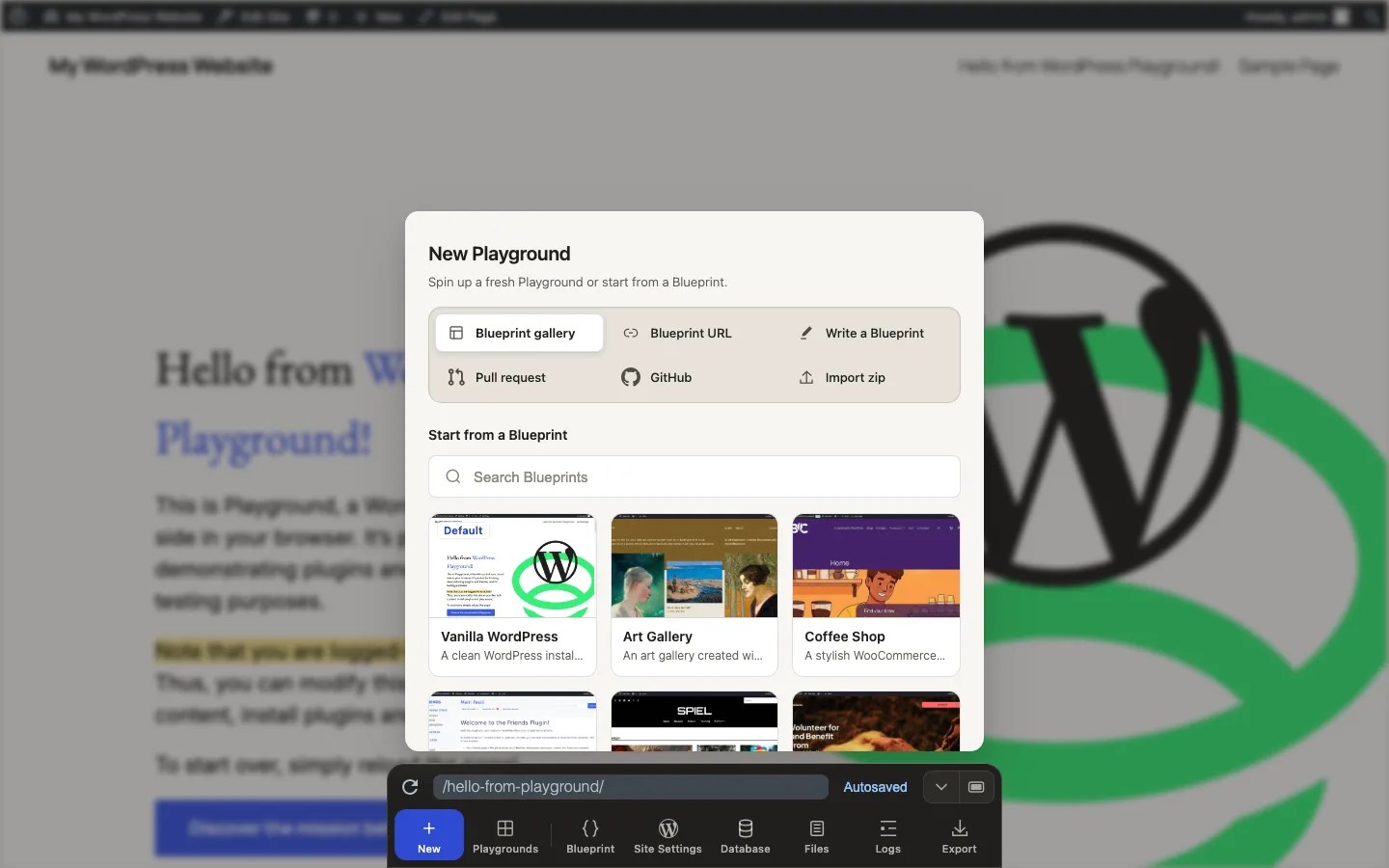
- Open New Blueprint gallery in the Playground Dock and choose an example.
- Open New Blueprint URL and enter a public Blueprint JSON or ZIP bundle URL.
- Open New Write a Blueprint to author a Blueprint in the browser.
- Open Blueprint to inspect or edit the current Playground’s Blueprint.
- Pass a Blueprint as a URL fragment.
- Load a Blueprint from a URL using the
blueprint-urlparameter. - Use Blueprint bundles (ZIP files or directories).
- Use the JavaScript API.
URL Fragment
The easiest way to start using Blueprints is to paste one into the URL “fragment” on WordPress Playground website, e.g. https://playground.wordpress.net/#{"preferredVersions....
For example, to create a Playground with specific versions of WordPress and PHP you would use the following Blueprint:
{
    "$schema": "https://playground.wordpress.net/blueprint-schema.json",
    "preferredVersions": {
        "php": "8.3",
        "wp": "6.5"
    }
}
And then you would go to
https://playground.wordpress.net/#{"preferredVersions":{"php":"8.3","wp":"6.5"}}.
In Javascript, you can get a compact version of any blueprint JSON with JSON.stringify and JSON.parse
Example:
const blueprintJson = `{
    "$schema": "https://playground.wordpress.net/blueprint-schema.json",
    "preferredVersions": {
        "php": "8.3",
        "wp": "6.5"
    }
}`;
const minifiedBlueprintJson = JSON.stringify(JSON.parse(blueprintJson)); // {"preferredVersions":{"php":"8.3","wp":"6.5"}}
const encodedBlueprint = encodeURIComponent(minifiedBlueprintJson);
const playgroundUrl = `https://playground.wordpress.net/#${encodedBlueprint}`;
You won’t have to paste links to follow along. We’ll use code examples with a “Try it out” button that will automatically run the examples for you:
Encoded Blueprint fragments
When you create Playground links from JavaScript or automation tools, encode the minified JSON once with encodeURIComponent() and append it after #:
const blueprint = {
    $schema: 'https://playground.wordpress.net/blueprint-schema.json',
    preferredVersions: {
        php: '8.3',
        wp: '6.5',
    },
};
const playgroundUrl = `https://playground.wordpress.net/#${encodeURIComponent(JSON.stringify(blueprint))}`;
Playground also supports Base64-encoded Blueprints. Base64 is useful when a platform modifies JSON fragments or when you want a compact, copyable link. For example, that’s the above Blueprint in Base64 format: eyIkc2NoZW1hIjogImh0dHBzOi8vcGxheWdyb3VuZC53b3JkcHJlc3MubmV0L2JsdWVwcmludC1zY2hlbWEuanNvbiIsInByZWZlcnJlZFZlcnNpb25zIjogeyJwaHAiOiAiNy40Iiwid3AiOiAiNi41In19.
To run it, go to https://playground.wordpress.net/#eyIkc2NoZW1hIjogImh0dHBzOi8vcGxheWdyb3VuZC53b3JkcHJlc3MubmV0L2JsdWVwcmludC1zY2hlbWEuanNvbiIsInByZWZlcnJlZFZlcnNpb25zIjogeyJwaHAiOiAiNy40Iiwid3AiOiAiNi41In19
URIError: URI malformed
If a Playground link fails with URIError: URI malformed, the encoded
Blueprint fragment is usually malformed. Common causes include an invalid %
escape, a fragment that was encoded twice, or JSON pasted into the URL without
encoding.
Rebuild the link from the original Blueprint object and encode it once:
const playgroundUrl = `https://playground.wordpress.net/#${encodeURIComponent(JSON.stringify(blueprint))}`;
If another tool changes URL fragments, use a Base64-encoded Blueprint instead.
In JavaScript, You can get any blueprint JSON in Base64 format with global function btoa().
Example:
const blueprintJson = `{
    "$schema": "https://playground.wordpress.net/blueprint-schema.json",
    "preferredVersions": {
        "php": "8.3",
        "wp": "6.5"
    }
}`;
const minifiedBlueprintJson = btoa(blueprintJson); // eyIkc2NoZW1hIjogImh0dHBzOi8vcGxheWdyb3VuZC53b3JkcHJlc3MubmV0L2JsdWVwcmludC1zY2hlbWEuanNvbiIsInByZWZlcnJlZFZlcnNpb25zIjogeyJwaHAiOiAiNy40Iiwid3AiOiAiNi41In19
Load Blueprint from a URL
When your Blueprint gets too wieldy, you can load it via the ?blueprint-url query parameter in the URL, like this:
Note that the Blueprint must be publicly accessible and served with the correct Access-Control-Allow-Origin header:
Access-Control-Allow-Origin: *
When a Blueprint URL fails with BlueprintFetchError, check these details:
- The URL must return a JSON file or a Blueprint ZIP bundle, not an HTML page.
- GitHub URLs should use
raw.githubusercontent.com, notgithub.com/.../blob/.... - GitLab URLs should use the raw file URL, not a
/-/blob/page. - The file must be reachable without login, cookies, VPN access, or a temporary browser session.
- Draft releases, expired CI artifacts, and temporary tunnel URLs can stop working even if the Blueprint was valid earlier.
- If you host the file yourself, configure CORS so `https://playground.wordpress.net` can fetch it.
Blueprint Bundles
The ?blueprint-url parameter now also supports Blueprint bundles in ZIP format. A Blueprint bundle is a ZIP file that contains a blueprint.json file at the root level, along with any additional resources referenced by the Blueprint.
For example, you can load a Blueprint bundle like this:
https://playground.wordpress.net/?blueprint-url=https://example.com/my-blueprint-bundle.zip
When using a Blueprint bundle, you can reference bundled resources using the bundled resource type:
{
    "landingPage": "/my-file.txt",
    "steps": [
        {
            "step": "writeFile",
            "path": "/wordpress/my-file.txt",
            "data": {
                "resource": "bundled",
                "path": "/bundled-text-file.txt"
            }
        }
    ]
}
For more information on Blueprint bundles, see the Blueprint Bundles documentation.
JavaScript API
You can also use Blueprints with the JavaScript API using the startPlaygroundWeb() function from the @wp-playground/client package. Here’s a small, self-contained example you can run on JSFiddle or CodePen:
<iframe id="wp-playground" style="width: 1200px; height: 800px"></iframe>
<script type="module">

    const client = await startPlaygroundWeb({
        iframe: document.getElementById('wp-playground'),
        remoteUrl: `https://playground.wordpress.net/remote.html`,
        blueprint: {
            landingPage: '/wp-admin/',
            preferredVersions: {
                php: '8.3',
                wp: 'latest',
            },
            steps: [
                {
                    step: 'login',
                    username: 'admin',
                    password: 'password',
                },
                {
                    step: 'installPlugin',
                    pluginData: {
                        resource: 'wordpress.org/plugins',
                        slug: 'friends',
                    },
                },
            ],
        },
    });

    const response = await client.run({
        // wp-load.php is only required if you want to interact with WordPress.
        code: '<?php require_once "/wordpress/wp-load.php"; $posts = get_posts(); echo "Post Title: " . $posts[0]->post_title;',
    });
    console.log(response.text);
</script>